
Before you start
DeliveryKing receiving software connected to your shop. Changes to the shop require a working connection.
The recorded interface is German. German button labels remain identifiable in all translations. Some labels may differ in your installed version.
Step by step
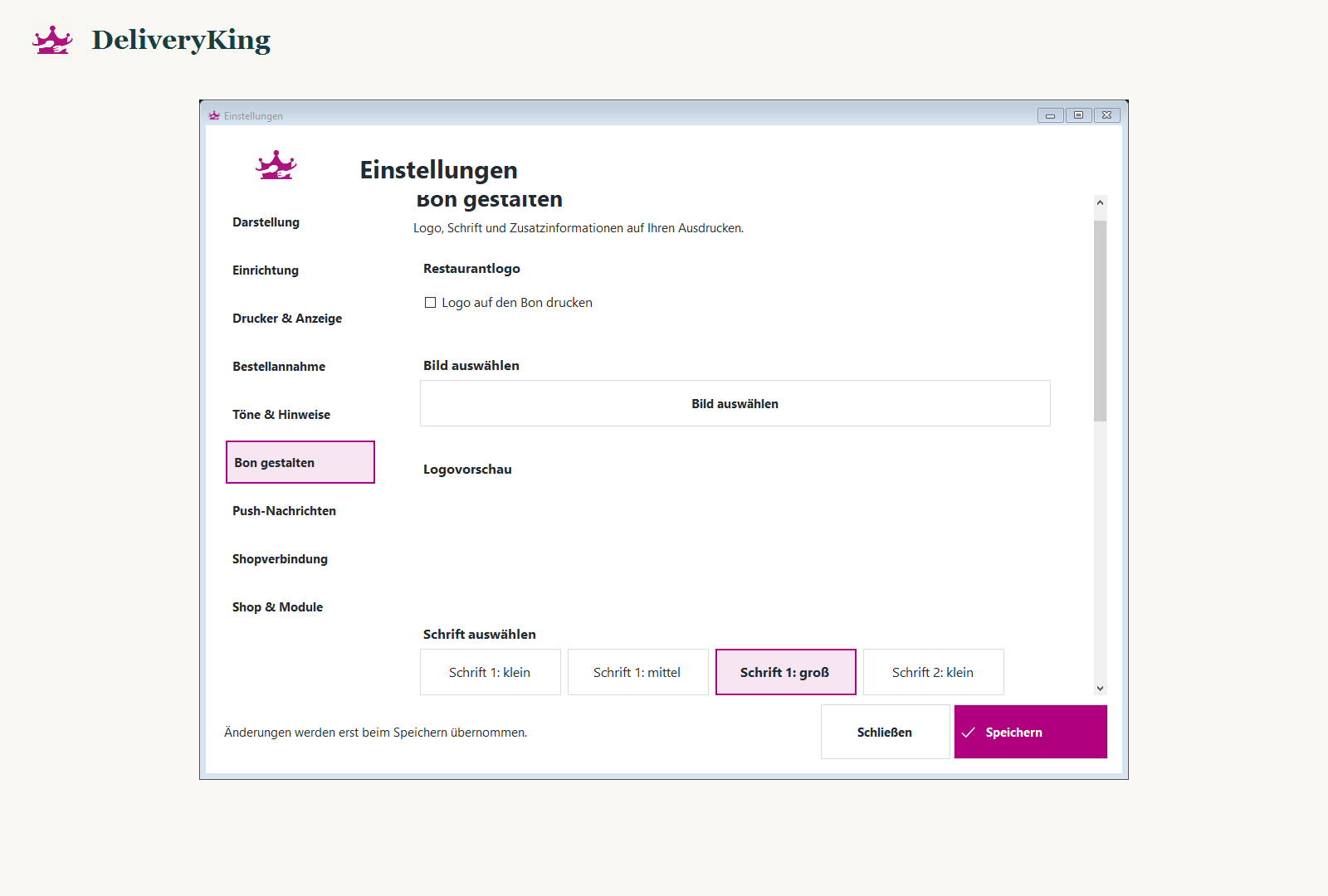
Open the printing or receipt section under “Einstellungen”.
Review the available receipt and driver slip settings. Choose the information and printers your team needs.
Save and check a test print for cut-off lines and readable sizes, extras and notes.
Screen reference
Check the result
Testing with sample data avoids accidentally processing a real order.