
Before you start
DeliveryKing receiving software connected to your shop. Changes to the shop require a working connection.
The recorded interface is German. German button labels remain identifiable in all translations. Some labels may differ in your installed version.
Step by step
Open “Speisekarte” and the available price adjustment action. Select the relevant category and price type.
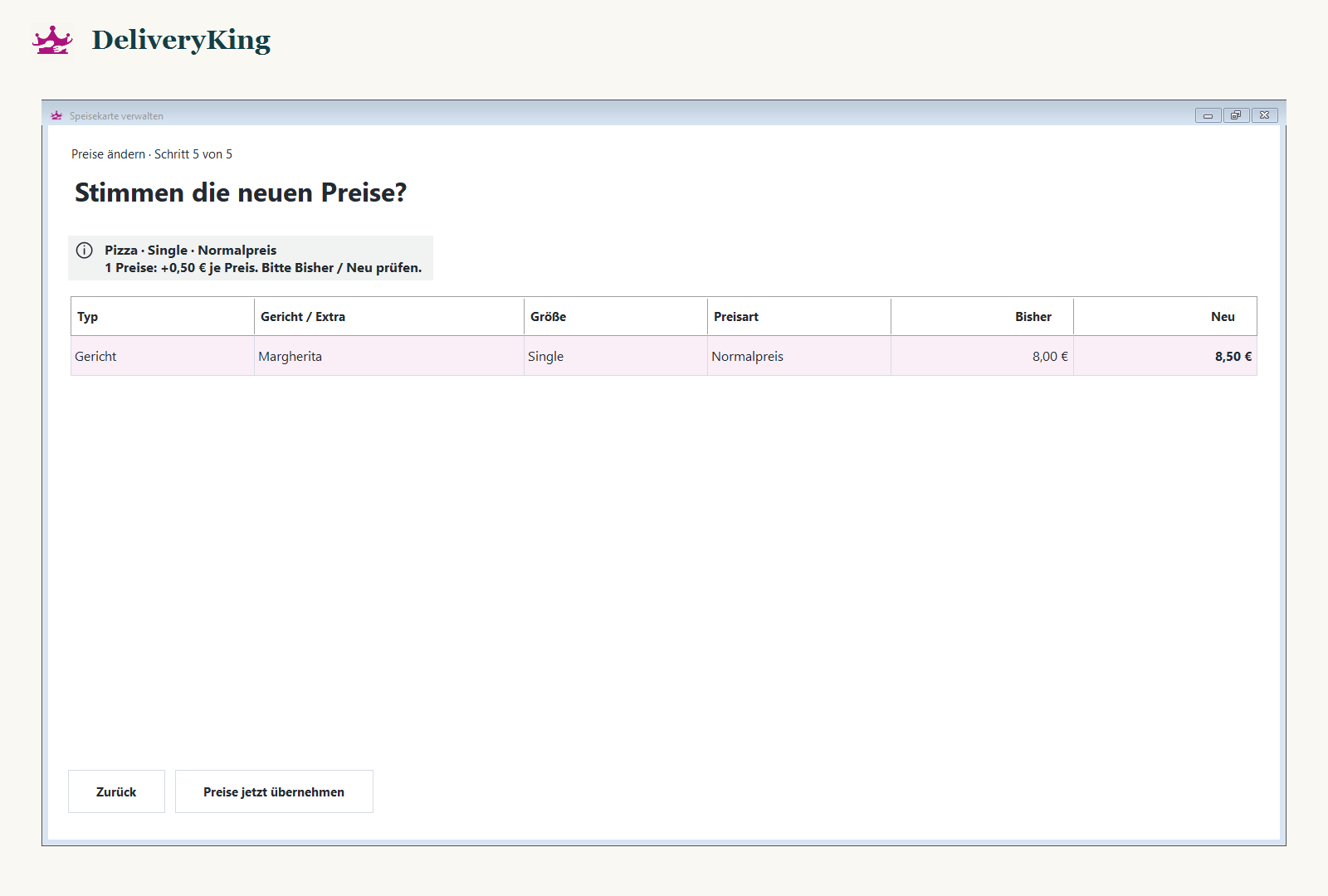
Enter the increase or decrease and calculate the preview. Check old and new prices, including extra surcharges if selected.
Apply only a correct preview. If the data has changed in the meantime, generate a new preview before confirming.
Screen reference
Check the result
Afterwards, compare several dishes and sizes in the shop.