
Before you start
An installed shop, access to DeliveryKing administration and permission to change this setting. Check changes in the shop afterwards.
The recorded interface is German. German button labels remain identifiable in all translations. Some labels may differ in your installed version.
Step by step
Open “Öffnungszeiten” in shop administration. Here you see the weekly schedule and existing special dates. For a continuous closure, choose “Schließzeitraum” at the top. The relevant input section opens.
Enter the first closed day in “Von” and the last in “Bis einschließlich”. Our example runs from the twenty-fourth to the twenty-sixth of December. The final day is fully closed too. Existing special hours within the period are replaced; your regular weekly hours are preserved.
Check both dates and choose “Schließzeitraum speichern”. After saving, filter the overview to “Sonderdaten”. Check that every day in your period appears as “Geschlossen”. Our three-day holiday example needs three closed days.
Screen reference
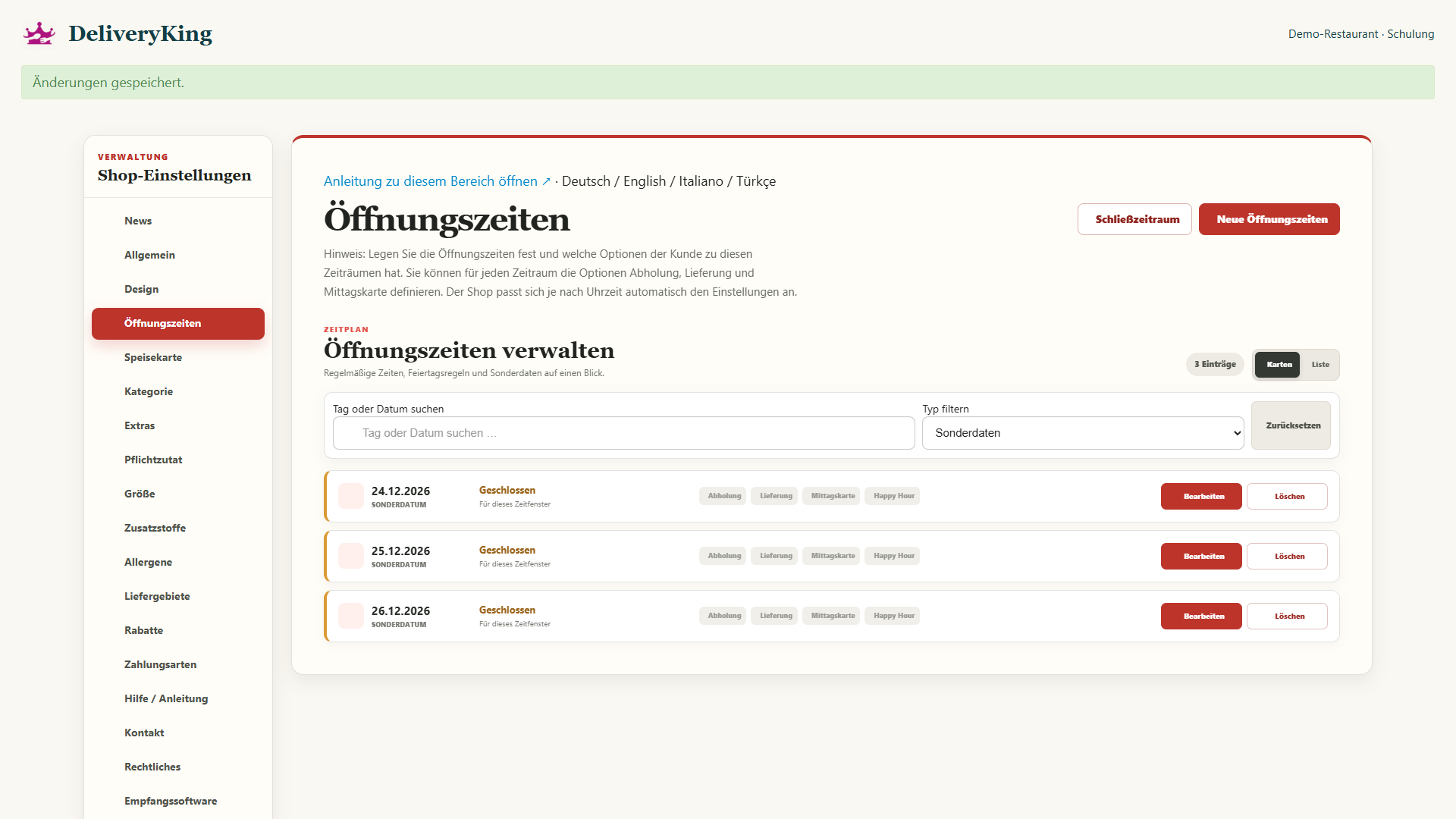
Check the result
After the final closed day, your regular weekly schedule applies again. An additional manual closure under “Allgemein” remains until you remove it there. Check the public shop’s status before your holiday and when you return.